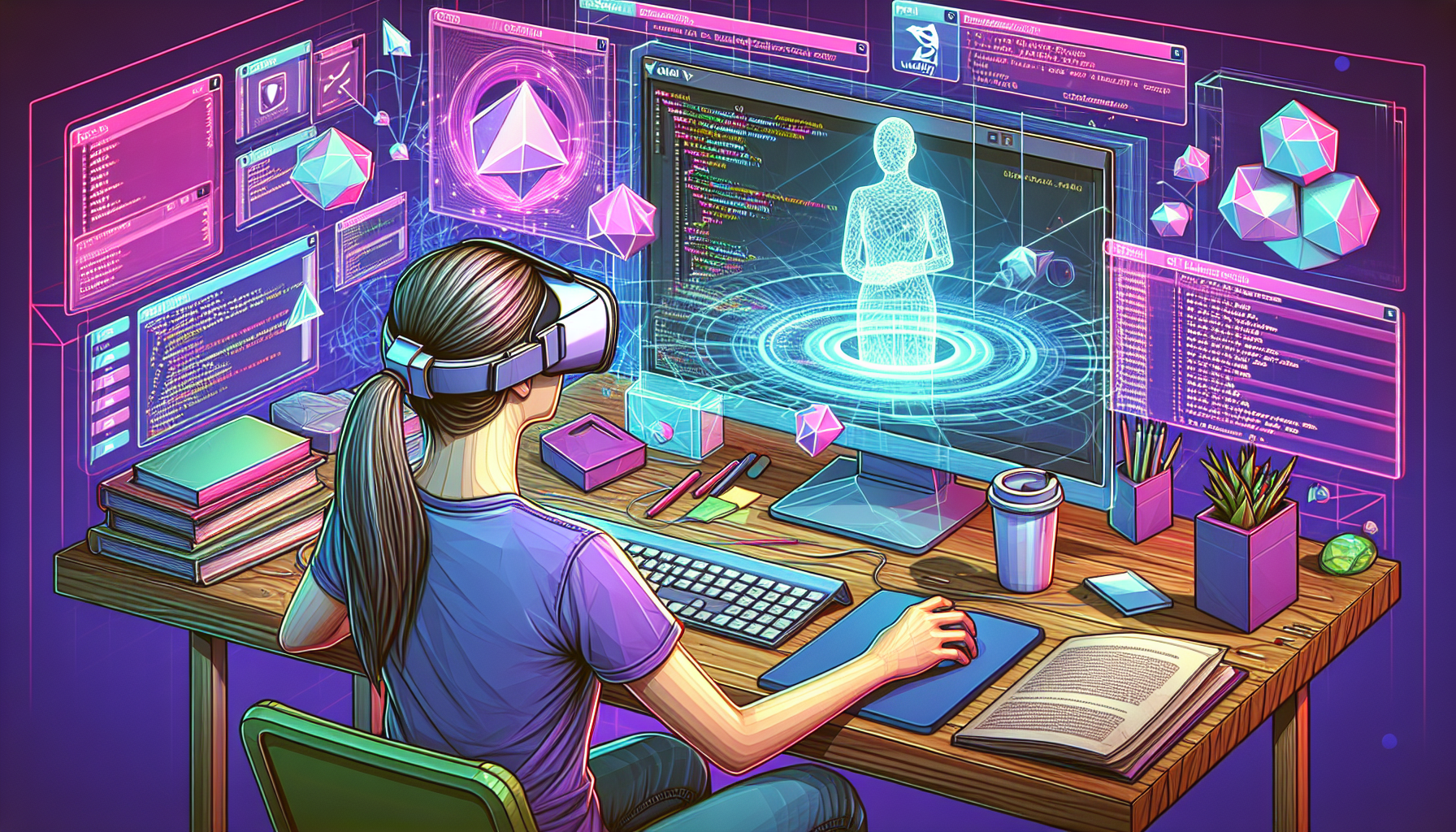
Developing Augmented Reality Experiences with Unity and Vuforia: A Beginner’s Guide to AR App Development
Augmented Reality (AR) offers a fascinating way of superimposing digital content over the real world. It enhances users’ perception of reality, making digital interactions appear as if they’re happening in the physical space around us. Unity, combined with Vuforia, provides a powerful platform for creating immersive AR experiences. This beginner’s guide will help you start your journey in AR app development using these tools.
Understanding the Basics
What is Unity?
Unity is a cross-platform game engine widely used for developing video games, simulations, and other interactive 3D applications. It’s favored for its ease of use, robust set of features, and strong community support.
What is Vuforia?
Vuforia is an AR platform that enables developers to create AR experiences on both Android and iOS devices. It uses computer vision technology to recognize and track image targets and 3D objects in real time, which makes it possible to overlay digital content on the real world as viewed through the camera of a smartphone or tablet.
Setting Up Your Development Environment
To start developing AR applications, you need to set up your development environment with the following steps:
-
Download and Install Unity: Ensure you have the Unity Hub installed. From Unity Hub, you can install the Unity Editor. Choose a version that is compatible with Vuforia.
-
Install Vuforia Engine AR: In Unity, go to
Edit > Project Settings > XR Plug-in Managementand install the Vuforia Engine AR package. -
Create a New Unity Project: Open Unity Hub, and create a new Unity project by selecting the
3Dtemplate.
Creating Your First AR Experience
Setting Up the Scene
- Start by adding a new
Scenein Unity. - Add an
AR Camera: Replace the main camera in the scene with anAR Camera` which comes with the Vuforia Engine. - Set up image targets: These are the images that Vuforia will use to anchor digital content in the real world.
Building and Running Your Application
- Connect your Android or iOS device to your computer.
- In Unity, go to
File > Build Settings, select your platform (iOS or Android), and clickBuild and Run.
Common Issues and Solutions
Debugging Tips
- Always ensure that your target images have high contrast and unique patterns.
- Verify that all image targets are activated and properly configured in the
Vuforia Configuration.
Testing on Different Devices
- Test on various devices to see how your application performs under different hardware conditions.
- Adjust settings like detection distances based on device capabilities.
Conclusion
Developing AR applications with Unity and Vuforia is an exciting but challenging journey. It requires patience and practice, but with dedication, you can create compelling AR experiences that are both innovative and engaging. Start experimenting today and transform your creative ideas into reality with AR!